PNY EU
  • Geforce Graphics Cards
    • What is the operating temperature of my PNY graphics card?

      Your PNY graphics card temperature will depend greatly on the environment that the card is installed into, case fans, and airflow. Current PNY Graphics cards will operate normally up until 95C. If you detect temps exceeding this, please check that your case cooling solutions are adequate.
      If you continue to experience issues please open a ticket with our support team at www.pny.com/en-eu/europe/support-form-emea .

    • My system shuts off when I install the RTX card. Why?

      This can indicate insufficient power supply capacity or incorrect cabling. Verify PSU wattage and ensure each connector is dedicated.

    • What is the optimal power to run a PNY GeForce Graphics Card?

      Power Supply requirements vary depending on the video card purchased. Please refer to side panel of your graphics card box for the recommended system Power Supply.

    • How do you disable Vertical Sync?

      If you do not see the option to disable VSYNC in your particular game settings, you can force VSYNC off globally in the NVIDIA control panel. To do this, open your NVIDIA control panel and click on 'Manage 3D Settings'. In the center you will see the various 3D settings. Scroll to the bottom of the list and you will see 'Vertical Sync.' Click on it and choose 'Force Off.' If you notice tearing in games, force the Vertical Sync on to resolve it.

    • My fans don’t spin until the card gets warm. Is that normal?

      Yes. Most modern RTX cards use 0dB fan technology, meaning fans remain off at idle and only spin up under load.

    • My RTX card has no display output. What can I try?

      Check power connections, reseat the card, try a different PCIe slot, and test with another display cable/monitor. If still no output, RMA may be required.

    • Where can I download the latest GeForce Drivers for my graphics card?

      All Drivers are available on the NVIDIA website.
      All NVIDIA driver releases can be downloaded from www.nvidia.com/en-us/drivers/

    • Do I need to uninstall my old drivers before installing a new GeForce card?

      It’s recommended. Use NVIDIA’s Clean Install option or DDU (Display Driver Uninstaller) to avoid conflicts.

    • Do I need to connect my monitor to the GPU or the motherboard?

      Connect directly to the GPU outputs. If connected to the motherboard, you’ll only use integrated graphics.

    • Why do I get a message saying the NVIDIA GeForce driver is not compatible with my version of Windows, or why does the installation fail?

      This happens if Windows is not fully updated. NVIDIA’s latest drivers require the most current build of Windows. To fix the issue, update your Windows operating system to the latest version, then reinstall the driver.

    • My new card is very large. How can I check if it will fit in my case?

      Check the GPU length, width, and slot thickness (2-slot, 2.5-slot, 3-slot). Compare with your case’s GPU clearance spec and make sure your motherboard has enough space.

    • RTX 40 series video card power dongle installation tips

      Do not pull the dongle wire when disconnecting the dongle from the board. Only pull the housing of the dongle.
      Do not bend the dongle wire to an angle after connecting with board.
      Do not insert the dongle tilted.
      Please ensure the dongle is fully seated. Power Connector Update – GeForce RTX 4090 | NVIDIA (custhelp.com)

    • I hear coil whine from my GPU. Is this a defect?

      Coil whine is common in high-performance GPUs and not a defect. It may vary by system load and PSU.

    • My GPU gets very hot (80–85°C). Is that normal?

      Yes. NVIDIA GPUs are designed to operate safely up to ~90°C. Ensure case airflow is adequate.

    • Why is my FPS low even with a new RTX card?

      Possible causes include: CPU bottleneck, background apps, outdated drivers, or incorrect power settings (set Windows and NVIDIA Control Panel to “High Performance”).

    • My PC restarts or crashes when gaming. Could it be the GPU?

      Yes, but also check PSU wattage, temperatures, and memory stability. A failing or undersized PSU is a common cause.

    • My fans spin up loudly on boot, then stop. Is that normal?

      Yes. Many GPUs perform a brief fan self-test at startup before switching to idle mode.

    • How many monitors can I connect to my GeForce card?

      Most RTX Series cards support 4 monitors simultaneously. Check your specific model for output ports (DisplayPort and HDMI).

    • My game crashes with “Out of Memory” errors, but I have plenty of RAM. Why?

      This usually refers to VRAM, not system RAM. Lower texture settings or resolution to reduce VRAM usage.

    • My RTX card shows PCIe x8 instead of x16. Is that bad?

      Not necessarily. Some motherboards run the top slot at x8 when other slots are populated. x8 Gen 4 has plenty of bandwidth for gaming.

    • Should I use Game Ready or Studio drivers?

      Game Ready drivers are best for gaming, while Studio drivers are optimized for content creation apps. Both work with RTX GPUs.

    • How do I enable ray tracing in games?

      Use in-game settings under Graphics → Ray Tracing / RTX. Ensure you’re using the latest driver and DX12 or Vulkan API.

    • Do I need GeForce Experience for my GPU to work?

      No. The GPU works with just the driver. GeForce Experience is optional for features like ShadowPlay, driver auto-updates, and optimization.

  • NVIDIA Pro Graphics Cards
    • What is the difference between NVIDIA Professional GPUs and GeForce cards?

      Professional GPUs are designed for CAD, 3D visualization, AI, and scientific computing. They feature certified drivers, longer lifecycle support, higher reliability, and ECC memory options. GeForce cards are optimized for gaming.

    • Do Professional GPUs support CUDA and AI workloads?

      Yes. They provide full CUDA, Tensor, and RT core support, just like GeForce cards, but with added VRAM and enterprise driver certification.

    • Why do some Professional GPUs have ECC memory?

      ECC (Error-Correcting Code) memory increases reliability by detecting and correcting data errors, which is critical for scientific, medical, and financial workloads.

    • How much VRAM do Professional GPUs have?

      Depending on the model:

      • Entry-level: 6–12GB (A2000, RTX 4000 SFF)
      • Mid-tier: 16–24GB (A4000, RTX 5000 Ada)
      • High-end: 48GB (A6000, RTX 6000 Ada)

    • Can I install a Professional GPU in a regular desktop PC?

      Yes, if the motherboard has a PCIe x16 slot and the power supply meets requirements. Full benefits (certified drivers, ISV support) are realized in workstations.

    • Do Professional GPUs work with Windows and Linux?

      Yes. NVIDIA provides drivers for both platforms. Linux often requires manual driver installation.

    • Do Professional GPUs support multi-GPU configurations?

      Yes. Many can be installed together for rendering, compute, or AI workloads. NVLink is supported on higher-end models like RTX A6000 and RTX 6000 Ada.

    • What display outputs do Professional GPUs have?

      Most current cards use DisplayPort 1.4a (up to 4x ports). Some models also include mini-DisplayPort or a VirtualLink USB-C port.

    • Do Professional GPUs support VR and AR headsets?

      Yes. They support VR/AR development and use cases, often with higher reliability for professional visualization.

    • My Professional GPU is not detected in the system. What should I check?

      Ensure the card is fully seated, PCIe power connectors are attached, BIOS is updated, and latest drivers are installed.

    • Will disabling Vertical Sync in the 'Manage 3D Settings' section of the NVIDIA control panel increase my performance or benchmarks?

      Yes, it will. To enable maximum performance in benchmarks, set 'Vertical Sync' to "Force off" in the Manage 3D settings section of the NVIDIA control panel.

    • Why does my Professional GPU show lower gaming FPS than a GeForce card?

      Professional GPUs prioritize accuracy, reliability, and stability in professional apps. Gaming performance per dollar is lower, but pro app performance is higher.

    • My RTX 4000 Ada SFF runs hot in a small case. Is that normal?

      SFF cards are designed for compact builds, but require proper airflow. Ensure intake and exhaust fans are unobstructed.

    • Can I use GeForce drivers with a Professional GPU?

      No. You must use NVIDIA’s RTX Enterprise or Studio drivers, which are ISV-certified for professional software.

    • Why is my application not recognizing the Professional GPU?

      Ensure you’re running the latest Enterprise driver, and that the application is configured to use the discrete GPU (some default to integrated graphics).

    • What are CUDA cores, Tensor cores, and RT cores?

      CUDA cores handle parallel compute, Tensor cores accelerate AI workloads, and RT cores handle real-time ray tracing.

    • Why do Professional GPUs have more VRAM than gaming GPUs?

      To handle large datasets, complex 3D scenes, simulations, and AI models that exceed gaming GPU memory requirements.

    • What drivers should I use?

      Use RTX Enterprise Drivers for ISV certification or Studio Drivers for creative apps. Both are optimized for stability.

    • Can I use RTX Professional GPUs for AI training?

      Yes. They support TensorFlow, PyTorch, and other ML frameworks, though NVIDIA also offers data center GPUs optimized for large-scale training.

    • Do these GPUs support Resizable BAR?

      Yes, most RTX Professional GPUs support Resizable BAR in supported systems/BIOS.

    • Are Professional GPUs supported in rugged/embedded systems?

      Yes, but ensure adequate cooling and PCIe slot power. Some SFF and rugged PCs may need BIOS or power tweaks.

    • Should I use "GPU-BURN" to stress test my NVIDIA Pro Graphics card?

      No. GPU-BURN is an outdated program and is not reliable for testing modern NVIDIA products. NVIDIA recommends using the DCGM (Data Center GPU Manager) tool, available from the NVIDIA website, for proper testing and troubleshooting.

    • What are the TORX screw sizes for the RTX 4000 ADA SFF & RTX A2000 Brackets?
      torx support
    • I have used an NVLink bridge to connect two RTX A6000 graphics boards, but the option to enable SLI is not present in the NVIDIA control panel.

      With our NVIDIA ECC-capable pro graphics boards (such as the RTX A6000 and others), ECC and SLI/NVLink are mutually exclusive. You may enable one or the other, but not both together. The option to enable SLI is not available after ECC mode has been enabled in the NVIDIA control panel, and the option to enable ECC mode is not available after SLI has been enabled.

    • How do I confirm if my card is genuine?

      Check the serial number with PNY support. Avoid third-party sellers that don’t provide proper invoices.

  • Memory
    • What does RAM do in a computer?

      RAM (Random Access Memory) temporarily stores data that the CPU needs quickly. More RAM allows smoother multitasking and faster program performance.

    • What’s the difference between RAM and storage?

      RAM is temporary, high-speed memory that clears when the PC shuts off. Storage (SSD/HDD) is long-term and keeps data even when powered off.

    • What is DDR in RAM?

      DDR stands for “Double Data Rate.” DDR4 and DDR5 are the current memory generations used in modern PCs.

    • Can I mix different brands of RAM?

      Sometimes, but not recommended. Different brands/timings/voltages can cause instability. For best results, use identical sticks from the same kit.

    • How much RAM do I need for gaming?

      Most modern games run well with 16GB. For high-end gaming or multitasking, 32GB is recommended.

    • How much RAM do I need for office work?

      8GB is the minimum for basic tasks. 16GB is better for multitasking, spreadsheets, and productivity apps.

    • What’s the difference between DDR4 and DDR5?

      DDR5 has higher bandwidth and efficiency but may have higher latency. It requires a compatible CPU and motherboard.

    • Is faster RAM always better?

      Faster RAM helps in certain workloads (games, content creation), but gains depend on CPU and system support. Stability is more important than raw speed.

    • Which RAM slot should I use?

      For dual-channel, install in the 2nd and 4th slots from the CPU (A2 and B2). Check your motherboard manual for exact placement.

    • Can I install DDR5 RAM in a DDR4 motherboard?

      No. DDR generations are physically keyed differently and not cross-compatible.

    • How do I check how much RAM I have?

      In Windows: Press Ctrl+Shift+Esc → Task Manager → Performance → Memory.

    • How do I enable my RAM’s rated speed?

      Enable XMP (Intel) or DOCP/EXPO (AMD) in the BIOS to run RAM at its advertised frequency.

    • HDo I need to update BIOS to use new RAM?

      Sometimes. New memory kits or higher-speed RAM may require a motherboard BIOS update for compatibility.

    • Can I install odd amounts of RAM, like 12GB?

      Yes, but you lose dual-channel symmetry. Best performance comes from matched pairs (e.g., 2×8GB, 2×16GB).

    • What voltage does DDR4 and DDR5 RAM use?

      DDR4 typically runs at 1.2V (XMP profiles may use 1.35–1.45V). DDR5 defaults to ~1.1V.

    • Does RAM have polarity?

      No. RAM only fits one way into the slot due to the notch.

    • My PC won’t boot after installing new RAM. What should I do?

      Check seating, slot placement, and compatibility. Try booting with one stick at a time. Clear CMOS if needed.

    • Why does my 16GB RAM show as 15.9GB usable?

      A small amount of RAM is reserved for hardware functions (often integrated graphics).

    • My RAM is rated at 3600MHz but shows 2133/2400MHz. Why?

      By default, RAM runs at JEDEC base speed. You must enable XMP/EXPO in the BIOS for full rated speed.

    • My PC randomly crashes. Could bad RAM be the cause?

      Yes. Run MemTest86 or Windows Memory Diagnostic to test for errors.

    • Can RAM overheat?

      Yes, especially high-speed kits. Ensure airflow around RAM slots. Heat spreaders or active cooling may help.

    • Does RAM speed affect gaming?

      Yes, especially with CPUs like Ryzen, which benefit from faster memory. Gains vary by title.

    • What’s memory latency (CL)?

      Latency is the delay between commands. Lower CL = faster response. Example: CL16 at 3200MHz is faster than CL22 at 3200MHz.

    • Is more RAM or faster RAM better?

      More RAM is better if you don’t have enough (8GB → 16GB). Faster RAM is beneficial after you meet the capacity you need.

    • Can RAM improve FPS in games?

      Sometimes. Faster RAM and dual-channel improve 1% low FPS and frame pacing, especially in CPU-limited games.

  • SSD
    • What is the difference between an SSD and an HDD?

      SSDs use flash memory for storage, which is faster, quieter, and more durable than HDDs that use spinning disks.

    • What is the difference between SATA SSDs and NVMe SSDs?

      SATA SSDs connect over the SATA interface and max out around 550 MB/s. NVMe SSDs use PCIe lanes and can reach several GB/s.

    • What is TBW in SSDs?

      TBW (Terabytes Written) measures how much data can be written to the SSD over its warranty life. Higher TBW = higher endurance.

    • Do SSDs wear out?

      Yes, flash memory has limited write cycles, but modern SSDs have wear-leveling and typically last many years under normal use.

    • Do SSDs need defragmentation?

      No. Defragmentation is for HDDs. SSDs use flash memory, and the OS automatically optimizes them with TRIM.

    • Can I install an SSD and HDD together in the same system?

      Yes. Many people use an SSD for the OS/programs and an HDD for bulk storage.

    • How do I know if my motherboard supports NVMe?

      Check if it has an M.2 PCIe slot labeled “NVMe” or if PCIe NVMe drives are listed as supported in the manual.

    • My SSD doesn’t show up in Windows. What do I do?

      You may need to initialize and format the drive in Disk Management before it becomes usable.

    • Can I use an M.2 SATA SSD in an M.2 NVMe slot?

      Some slots support both SATA and NVMe; others only support NVMe. Always check the motherboard manual.

    • Do SSDs need special drivers?

      No. Most SSDs use the standard AHCI (SATA) or NVMe drivers included with modern operating systems.

    • Why is my SSD slower than advertised?

      Performance depends on workload, drive health, system interface (SATA vs PCIe), and whether the SSD is nearly full.

    • My SSD shows less capacity than advertised. Why?

      Manufacturers use decimal units (1GB = 1,000MB), while computers use binary units (1GB = 1,024MB), so capacity appears smaller.

    • What is the difference between unallocated and allocated space on an SSD?

      Allocated space is partitioned and usable. Unallocated is blank space you must format before use.

    • My SSD is overheating. What can I do?

      Ensure proper airflow or move it to a better-ventilated M.2 slot.

    • Will cloning my old drive to an SSD work?

      Yes. Cloning software can copy your OS and data to the SSD, allowing you to boot directly from it.

    • Why does my SSD not appear in BIOS?

      Possible causes: drive not fully seated, disabled slot in BIOS, or unsupported interface. Reseat and check BIOS settings.

    • My SSD is not running at PCIe Gen4 speeds. Why?

      Both the CPU and motherboard must support PCIe Gen4. Otherwise, the SSD runs at Gen3 speeds.

    • What is SMART data and how do I use it?

      It’s reserved space that the SSD uses for wear leveling and performance.

    • What is over-provisioning in SSDs?

      It’s reserved space that the SSD uses for wear leveling and performance.

    • M.2 Installation Guide

      1. Shut down your system
      2. Turn off your computer completely.
      3. Now remove the power cable and battery if applicable. The battery removal step applies only to laptops when it's possible to remove the battery. To see how to remove the battery, refer to your owner's manual.
      4. Discharge residual power if this is a laptop installation. If your laptop has a removable battery, remove it, and hold the power button for five seconds to discharge any electricity left in the system.
      5. Open the computer case or user accessible bay
      6. Touch an unpainted metal surface to ground yourself. This protects your computer's components from the static electricity that's naturally present in your body - grounding is an extra safeguard.
      7. Locate the M.2 PCIe slot. This slot is usually easy to find in desktops, but in laptops the location will vary - it's typically under the bottom panel, or under the keyboard. Refer to your owner's manual for the exact location, as every system looks slightly different.
      8. Insert the SSD. Depending on your computer, there might be a heat sink or screw that needs to be removed prior to inserting your new NVMe PCIe SSD. To insert your PNY NVMe PCIe SSD, hold the SSD carefully by the sides. Do not touch the gold connector pins. Align the notches in the SSD with the ridges in the PCIe slot, then insert at a 30-degree angle. Do not force the connection.
      To secure the drive, it might be necessary to insert the screw into the provided mount on the motherboard. Do not over-tighten the screw. MAKE SURE you only use the mounting screw for the "2280" drive. This should be printed on your motherboard or this information will be provided in your motherboard owners manual. Please remove any screws that may be installed in the 2260 of 2242 mounts on your motherboard. Failure to do so will result in damage of your PNY M.2 2280 NVMe drive. Please refer to the picture below.
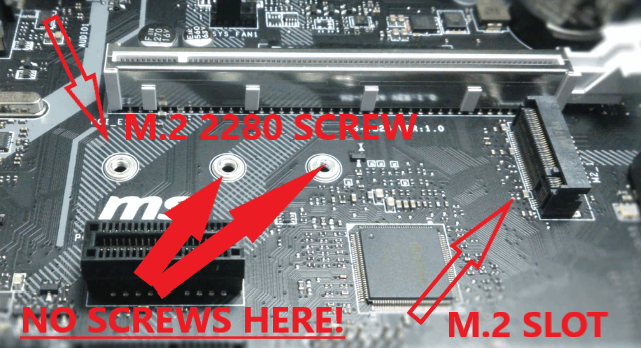
      M.2 Installation Guide
      9. After the SSD is securely seated in the slot, put your computer back together and reconnect the battery if it was removed. Turn on your computer. Unless you removed your old storage drive in a previous step, the computer is booting from the old drive and you will need to enter your motherboard BIOS and change the boot order to the the new M.2 drive and then install your operation system or clone your existing drive to the new M.2 drive using cloning software of your choice.

  • USB Drives
    • What is the difference between a USB 2.0 and USB 3.0 flash drive?

      USB 2.0 maxes out at ~30 MB/s, while USB 3.0 can reach over 100 MB/s or more, depending on the drive.

    • What is USB 3.2 Gen 1 vs Gen 2?

      Gen 1 = up to 5 Gbps (~625 MB/s). Gen 2 = up to 10 Gbps (~1,250 MB/s).

    • What’s the difference between USB-A and USB-C flash drives?

      USB-A is the traditional rectangular connector. USB-C is smaller, reversible, and found on newer laptops, phones, and tablets.

    • What is an OTG (On-The-Go) flash drive?

      OTG drives have dual connectors (USB-A/USB-C or microUSB) for use with both PCs and mobile devices.

    • Do flash drives wear out?

      Yes. NAND flash has limited write cycles, but modern flash drives last many years under normal use.

    • What capacities are available?

      USB drives range from 2GB to 2TB, though most common are 16GB–512GB.

    • Why does my USB flash drive show a much smaller capacity after using recovery or backup software, and how can I fix it?

      Some recovery or backup programs that aren’t fully compatible with larger USB drives will shrink the drive’s partition. This makes the drive appear much smaller than its actual capacity.
      To restore your PNY flash drive to its full capacity, you can use the Windows DiskPart tool:
      Open Command Prompt as Administrator.
      Type: diskpart → press Enter.
      Type: list disk → press Enter (note the disk number of your USB drive; stop if unsure).
      Type: select disk X → press Enter (replace X with your USB drive’s number).
      Type: clean → press Enter.
      Type: create partition primary → press Enter.
      Type: format fs=exfat quick → press Enter.
      Type: active → press Enter.
      Type: assign → press Enter.
      Type: exit → press Enter.
      After completing these steps, the USB drive should show its full original capacity again.

    • Are flash drives the same as SSDs?

      Both use NAND flash, but SSDs have advanced controllers, higher speeds, and larger capacities. Flash drives are portable and simpler.

    • What is USB cache, and why does a file transfer sometimes appear to stop and then resume?

      USB cache (or write caching) is when data is first stored in temporary memory before being written permanently to the flash drive. This helps speed up small writes, but when copying a large file, the cache can fill up.

      Once the cache is full, the system has to wait while the drive finishes writing data to flash. That’s why a transfer may look like it pauses or slows down, and then resumes at a different speed — it’s the cache emptying and refilling in the background.

      Always use “Safely Remove Hardware” to be sure all cached data has been written before unplugging the drive.

    • Do I need drivers for a flash drive?

      No. Modern OSes (Windows, macOS, Linux) support plug-and-play.

    • What file systems do flash drives use?

      FAT32 (universal), exFAT (for large files >4GB), NTFS (Windows), or HFS+/APFS (Mac).

    • Why can’t I copy a file larger than 4GB to my drive?

      FAT32 has a 4GB file size limit. Reformat as exFAT or NTFS.

    • Can I use a flash drive with a smartphone?

      Yes, if the phone supports USB OTG or has a USB-C port compatible with the drive.

    • Can I use one flash drive on Mac and Windows?

      Yes. exFAT is the best format for cross-platform compatibility.

    • How do I safely eject a flash drive?

      Use the “Safely Remove Hardware” option in the OS to prevent data corruption.

    • My flash drive is not detected. What should I check?

      Try another port, another computer, or check Disk Management to see if it needs formatting.

    • Can I use a flash drive for 4K video recording?

      Only high-speed USB 3.1/3.2 drives with sustained write speeds can handle it reliably.

    • Will a USB 3.0 drive work in a USB 2.0 port?

      Yes, but it will run at USB 2.0 speeds.

    • Do flash drives work with gaming consoles?

      Yes. They can be used for save data, media playback, or as extended storage (depending on console).

  • SD/Micro SD Cards
    • What’s the difference between SD and microSD?

      SD cards are full-sized, while microSD cards are smaller and commonly used in phones, cameras, and drones. Both follow the same standards.

      • What are the different SD card capacity types?

        SDSC (Standard Capacity): up to 2GB
        SDHC (High Capacity): 2GB–32GB
        SDXC (Extended Capacity): 32GB–2TB
        SDUC (Ultra Capacity): up to 128TB (future standard)

        • What is microSD Express?

          A new standard that combines PCIe/NVMe technology with microSD form factor, offering SSD-like speeds while remaining backward compatible.

          • What are UHS-I, UHS-II, and UHS-III?

            Ultra High Speed (UHS) bus standards. UHS-I supports up to 104 MB/s, UHS-II up to 312 MB/s, UHS-III up to 624 MB/s.

            • What do the numbers on SD cards mean (A1, A2, V30, etc.)?

              They indicate performance ratings:
              A1/A2 = App performance
              V10–V90 = Video speed class (sustained write for video recording)
              C2–C10 = Original speed class (min write MB/s)

              • What does Class 10 mean?

                Class 10 means a guaranteed minimum sustained write speed of 10 MB/s.

                • Can microSD cards be used in SD card slots?

                  Yes, with an adapter. They are electrically the same.

                • What devices use microSD Express?

                  It’s emerging in high-performance mobile devices, IoT, and cameras where NVMe-level speed is useful. Backward compatibility ensures older devices see it as a standard UHS card.

                • Can I use the same microSD in a phone and a camera?

                  Yes, but it’s best to reformat the card each time you switch devices to avoid file system conflicts.

                • Can I use a microSD card as internal storage in Android?

                  Yes, if the phone supports Adoptable Storage. The card is encrypted and tied to that device.

                • Can I boot an OS from an SD card?

                  Yes. Raspberry Pi and other embedded systems commonly boot from SD cards.

                • Can microSD cards be used in SD card slots?

                  Yes, with a full-size SD adapter or direct microSD slot (many ultrabooks have them).

                • Why isn’t my SD card showing up on my computer?

                  Possible causes include a faulty reader, driver issues, file system corruption, or the card being unformatted.

                • My SD card is read-only. How do I fix this?

                  Check the physical lock switch on full-size SD cards. If not locked, it may be file system corruption; reformatting may fix it.

                • Why does my card show less capacity than advertised?

                  Some space is reserved for formatting and system use. Also, manufacturers use decimal (1GB = 1,000MB) vs binary (1GB = 1,024MB).

                • Why did my SD card suddenly stop working?

                  Causes include worn flash cells, corrupted file system, or physical damage. Try reformatting or testing in another device.

                • Why is my camera saying “Card too slow”?

                  Causes include worn flash cells, corrupted file system, or physical damage. Try reformatting or testing in another device.

                • Can SD cards reach SSD speeds?

                  Yes, microSD Express with PCIe/NVMe can achieve gigabytes per second speeds. Regular UHS cards are slower.

                • Can SD cards handle 8K video?

                  Yes, with V60 or V90-rated cards that guarantee sustained high write speeds.

                • What is the typical warranty for PNY SD cards?

                  Most PNY SD/microSD cards include a limited lifetime warranty. Proof of purchase is required.

                • Will a microSD Express card work in my old phone?

                  Yes, it’s backward compatible. It will function at UHS-I speeds if the device doesn’t support Express.

                • Are SD cards waterproof and shockproof?

                  Many PNY cards are designed to be water-resistant, shockproof, magnet-proof, and temperature resistant.

  • OTG Drives
      • What is a Duo Link OTG drive?

        It’s a USB flash drive with two connectors (e.g., USB-A and USB-C or USB-A and microUSB), allowing use with both computers and mobile devices.

      • What does OTG mean?

        OTG = On-The-Go. It allows phones/tablets to act as hosts, so you can connect storage devices directly.

      • Do Duo Link OTG drives need special drivers?

        No. They are plug-and-play on Android, Windows, macOS, and many Linux systems.

      • Can I use Duo Link OTG drives for backup?

        Yes. They can store photos, videos, music, and documents, and many phones support direct copy or backup apps.

      • How do I connect a Duo Link OTG to my Android phone?

        The contacts' backup is intended for viewing only via the DUO LINK app. Do not attempt to view the backup contents on a computer.

      • How do I use the Duo Link on a PC?

        Use the USB-A connector like a standard flash drive.

      • Do I need to format the drive before use?

        No, they come pre-formatted (usually exFAT for cross-platform compatibility).

      • Do Duo Link drives support OTG backup apps?

        Yes, apps like file managers or backup tools can copy data to/from the drive.

      • Why does the Duo Link only work on PC, not on my phone?

        Some phones disable OTG by default. Check phone settings or compatibility.

      • Can I play music or video files directly from the Duo Link?

        Yes, as long as the file type is supported by your device.

      • Can I move apps onto the Duo Link drive?

        Some Android devices allow app data storage on external drives, but full apps usually must remain in internal storage.

      • Can I use Duo Link as internal storage in Android?

        Some phones support Adoptable Storage, but most Duo Link drives are best for file transfer and external storage.

      • Do Duo Link drives work with smart TVs?

        Yes, if the TV supports external USB storage.

      • My Duo Link shows less capacity than advertised. Why?

        File systems and reserved space reduce reported capacity slightly.

      • What file system is best for Duo Link?

        exFAT is best for cross-platform compatibility and large files.

      • Do Duo Link drives support simultaneous PC and phone connections?

        No. Only one connector can be used at a time.

      • What’s the maximum supported file size?

        Depends on format: FAT32 = 4GB max file size, exFAT = no practical limit for normal use.

      • Do Duo Link drives work with Chromebooks?

        Yes, they’re plug-and-play with Chrome OS.

      • How can I confirm my phone supports OTG?

        Check the manufacturer’s specs or use an “OTG Checker” app from the Play Store.

Close